Your phone can play browser games with nothing to install. Modern games run straight in Chrome or Safari, with touch controls. This guide covers how to start, what to pick, and how to fix the common problems.
If you only want a list of games, see our best mobile browser games. This page is about how to play.
Quick Start
Open your phone's browser and go to a game site. Pick a game and tap Play. That is the whole setup. You do not need an account.
Many games save your progress in the browser. That save lives on this phone, in this browser. If you clear the site's data or switch browsers, the save does not come with you.
Four Settings That Help
1. Turn the phone sideways for fast games. Racing and action games are usually built for a wide screen. Puzzle and board games often work fine upright. Some of our games tell you which way to hold the phone.
2. Add the site to your home screen. In Safari, tap Share, then Add to Home Screen. In Chrome on Android, open the menu and choose Add to Home screen. You get an icon that opens the site in one tap. Depending on your phone, it opens in the browser or in its own window. Either way, nothing is installed.
3. Turn on Do Not Disturb. A call or a banner in the middle of a match can cost you the round. Focus on iPhone and Do Not Disturb on Android both work.
4. Load on Wi-Fi when you can. A game downloads most of its data when it first loads. After that, a game you play alone uses very little. Online games keep using some data while you play.
What to Play on a Phone
Look for the 📱 badge on our site. It marks games their publishers list as mobile-friendly. Check the controls too, since some only list keys.
Puzzle:  Sudoku,
  Daily Match,
  Lingo Dreams,
  Paint Rush,
  Home Match: Tile Master.
Racing:  Lambo Traffic Racer,
  SUV Traffic Racer,
  Real Drive 3D. Only Real Drive 3D's publisher lists on-screen controls. The other two list keyboard keys only.
Board:  Just Ludo, a tabletop dice game.
Quick pick:
Two Players on One Phone
Most two-player browser games expect a keyboard. On a phone, they often play as one-player games. Our own games are different. Most of them let two people play on one phone.
They do it in three ways. Some split the screen into two halves, one per player. Some give each player a strip of buttons on their own edge of the phone. Others are played by tapping: you take turns, or each of you taps your own half.
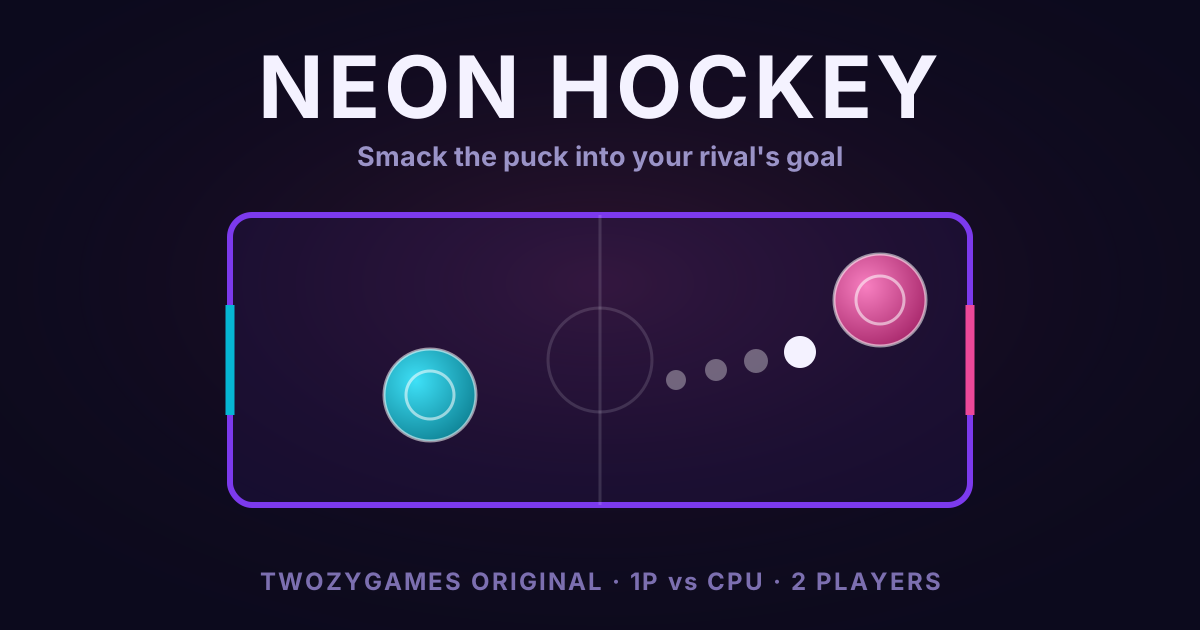
Neon Hockey is a good first try. Hold the phone sideways. Each player puts a thumb anywhere in their own half, and a stick appears under it.
Our same-device collection lists more games you can share.
Fixing Common Problems
The game will not load. Reload the page first. If it still fails, try another browser. Heavy 3D games may struggle on older phones.
The browser bar covers the controls. Scroll a little to hide the address bar, or use the game's full-screen button if it has one.
The game feels slow. Close apps you are not using. Low power mode (Battery Saver on Android) can also slow games down, so turn it off while you play.
Taps do not register. Tap inside the game area, away from the very edges of the screen. The edges are where the phone listens for its own swipes.
No sound. Phones block sound until you touch the page. Tap once inside the game. Also check that the phone is not on silent.
How Much Data Does It Use?
It depends on the game. Big 3D games can take several megabytes to load. Our own games are much smaller. Each one is a single file of less than 60 KB. Some also load one shared file of about 44 KB for touch controls. Even together, that is smaller than most photos on your phone.
Browse our 2-player and puzzle games on TwozyGames.